
Connect Onlypult to Claude.ai
Add Onlypult as a custom connector in Claude.ai settings. Authentication uses OAuth 2.1 — no API key paste. The free plan allows one custom connector.
MCP Server URL: https://mcp.onlypult.com/mcp
Authentication: OAuth 2.1 (sign in with your Onlypult account).
Overview
The flow takes a few minutes:
- Open Settings → Connectors in Claude.ai
- Add a custom connector with the Onlypult MCP URL
- Click Connect and sign in with Onlypult
- Ask Claude anything about your social profiles or posts — approve tool calls when prompted
Prerequisites
- An active Claude.ai account
- An active Onlypult account with connected social profiles
- Custom Connectors available in your region (Settings → Customize → Connectors)
Free plan limit: Claude.ai free accounts can add one custom connector. If you already use it for another service, remove that connector first or upgrade your plan.
Step 1 — Open settings and Connectors
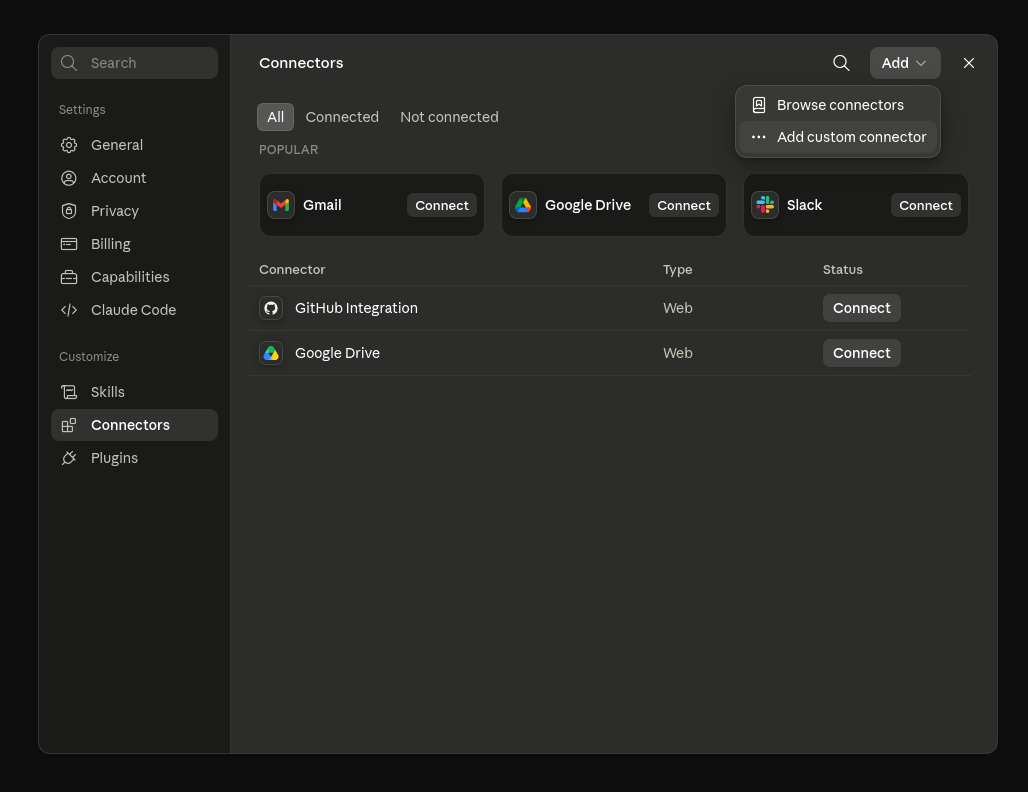
Click your profile icon in Claude.ai, then open Settings. In the left sidebar under Customize, select Connectors.
Click the Add button in the top-right corner and choose Add custom connector.
Step 2 — Enter connector details
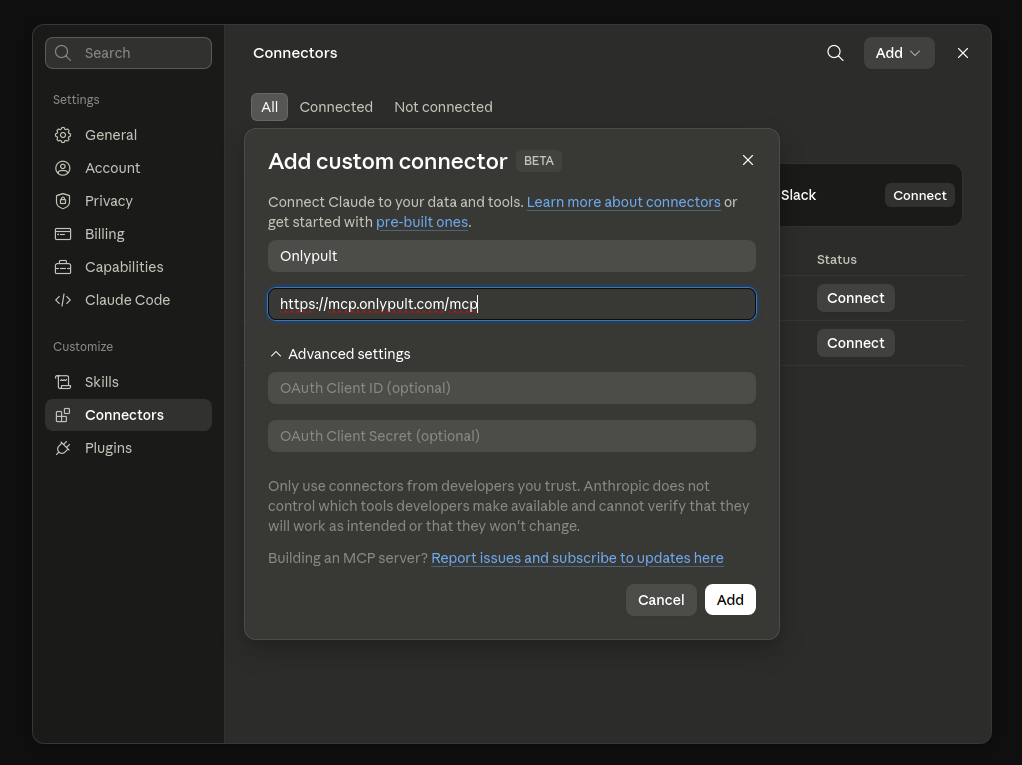
In the Add custom connector dialog, fill in:
| Field | Value |
|---|---|
| Name | Onlypult (or any label you prefer) |
| URL | https://mcp.onlypult.com/mcp |
Leave OAuth Client ID and Secret empty — Onlypult uses automatic OAuth discovery. Click Add.
Step 3 — Connect and authorize
After adding the connector, Claude.ai shows the Onlypult entry with status You are not connected to Onlypult yet. Click Connect.
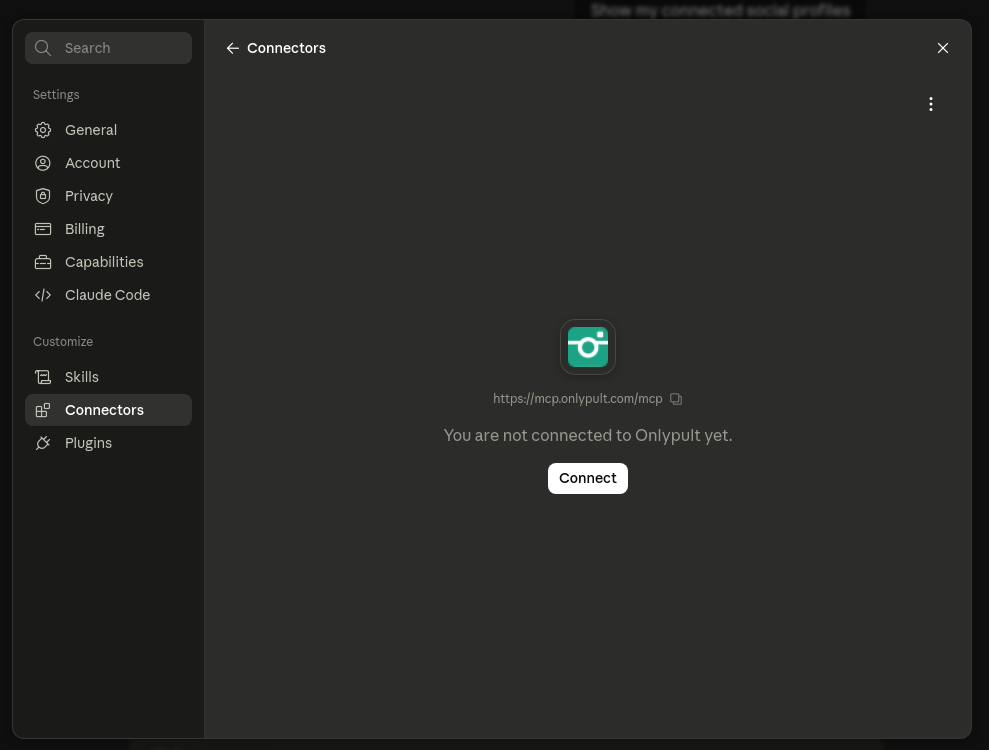
You will be redirected to the Onlypult consent page. Log in if needed and click Allow access. After approval, the connector status changes to connected.
Step 4 — Use Onlypult in chat
Start a new chat and ask Claude about your Onlypult account. When Claude needs to call an MCP tool, it shows a permission prompt — click Always allow to avoid repeating the prompt for the same tool.
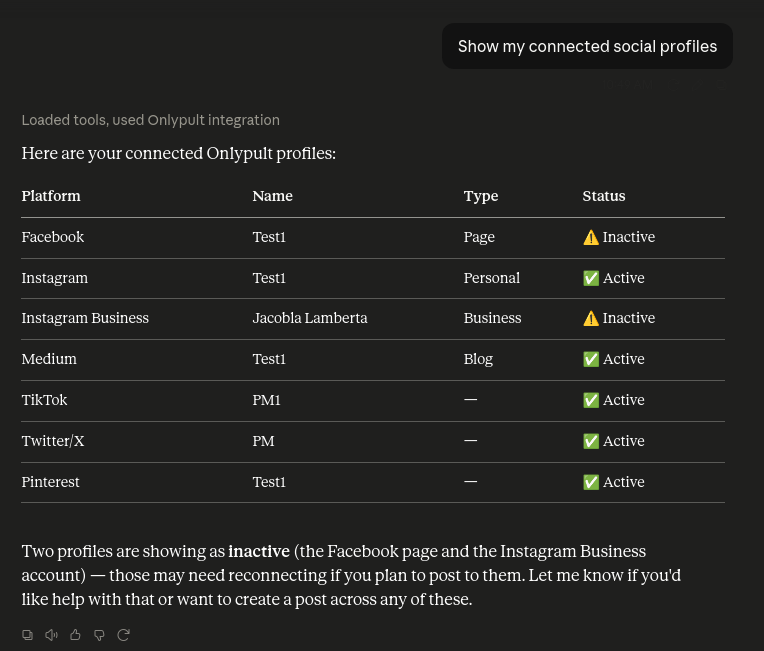
Show my connected social profiles
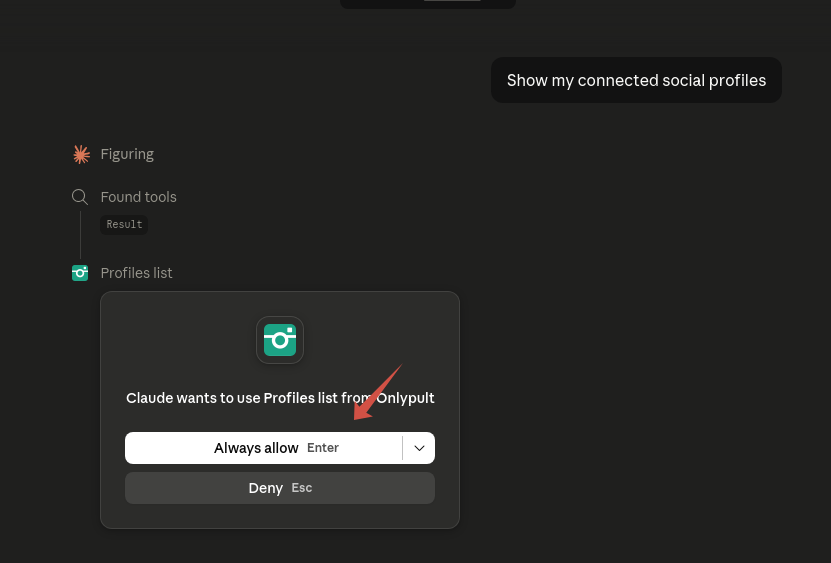
Claude calls the Onlypult MCP server and returns the result:
Other things you can ask:
- Post "Hello world!" to Instagram now
- Schedule a LinkedIn post for tomorrow at 9am
- List my failed posts and retry them
See the full tool reference for everything the MCP server supports.
Tool permissions: Claude asks before each tool type the first time. Choose Always allow for tools you use regularly. You can manage allowed tools in connector settings.
Troubleshooting
I don't see Connectors in settings
Custom Connectors roll out gradually by region and plan. Try updating Claude.ai or use Claude Desktop with an API key instead.
Free plan — can't add a second connector
Free accounts are limited to one custom connector. Remove an existing custom connector before adding Onlypult, or upgrade to Pro.
Authorization fails or loops
Make sure you are logged into the correct Onlypult account. Disconnect the connector and add it again, then click Connect once more. The consent page must show Allow access.
Claude doesn't call Onlypult tools
- Confirm the connector shows as connected in Settings → Connectors
- Ask a question that clearly needs Onlypult data (e.g. list my social profiles in Onlypult)
- Start a fresh chat after connecting
- Check that you approved the tool permission prompt
Need help with MCP tools?
See MCP Server documentation — tool list, media upload flow, and OAuth details.