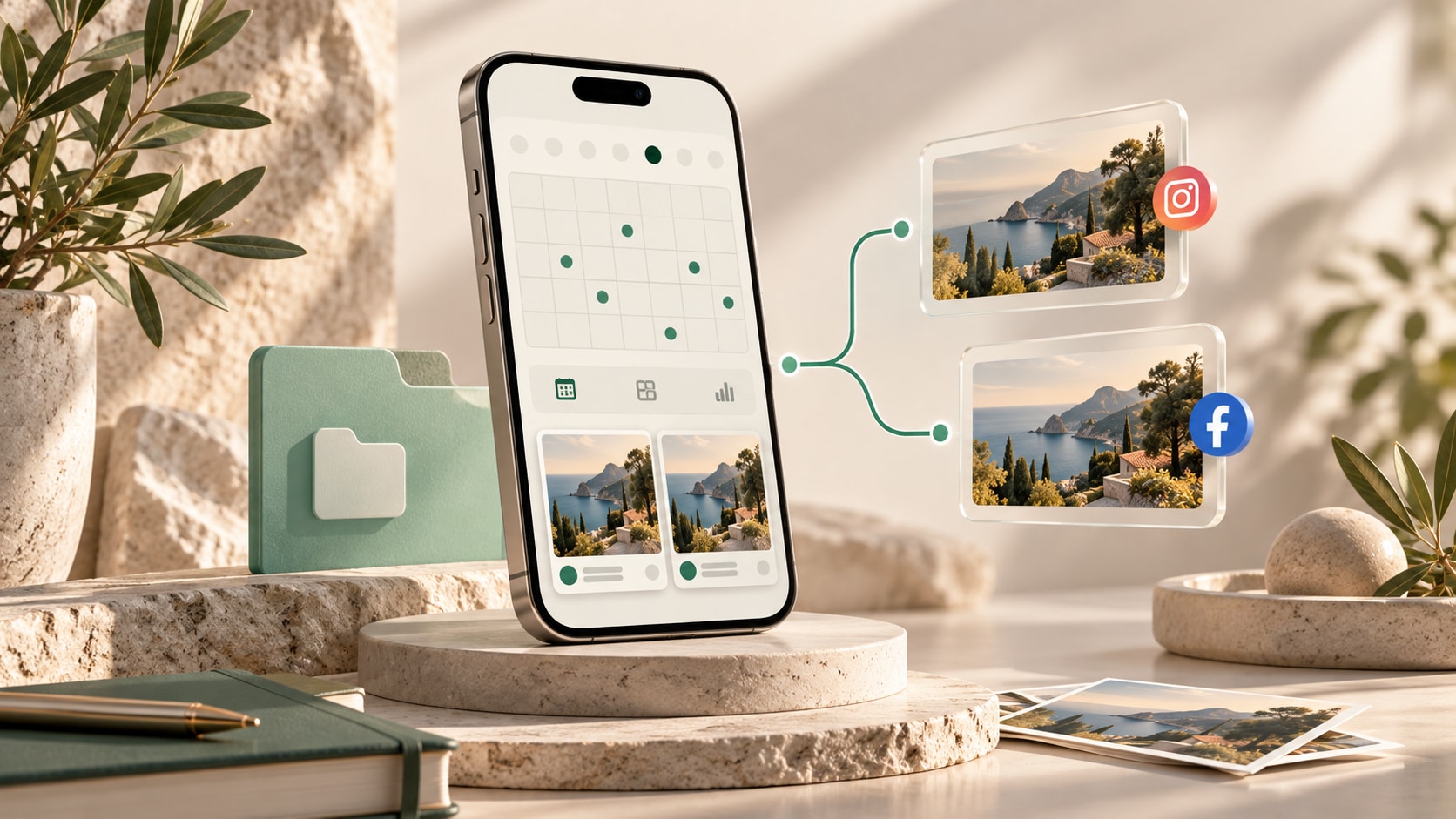

Onlypult 3.0.7 for iPhone and iPad has a new interface, navigation and icon. Work with Projects, prepare crossposts and check your publishing schedule from your phone.
Keep a client’s accounts in one Project
A Project groups a client’s or brand’s accounts in a separate workspace. Keep one client’s Telegram and VK accounts together, for example, and create a separate Project for another client.
Our Projects article explains how to organize accounts.
Prepare posts for several accounts
Crossposting lets you prepare content for several accounts and adjust the text, media and settings for each platform. To reuse an existing post, clone it.
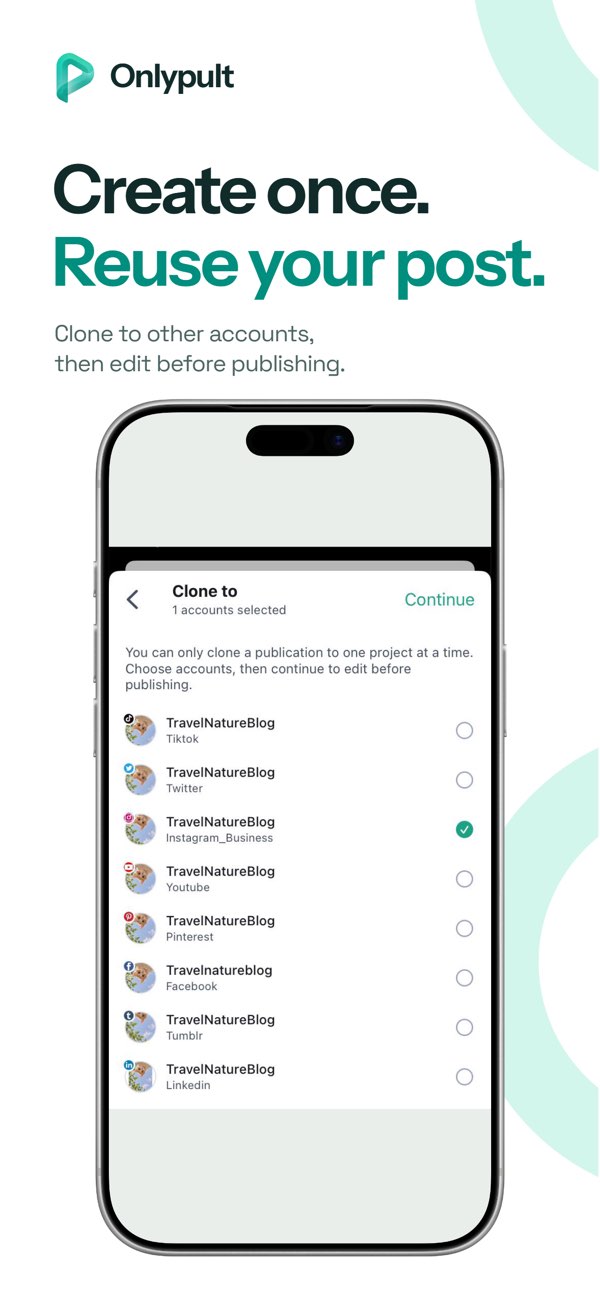
Open the post and tap the clone icon. Under Clone to, select the destination accounts and tap Continue. You can select accounts from one Project at a time.
iOS screenshots: the official Onlypult App Store listing. The interface shown is in English.
The updated post editor
Choose a format, add photos or videos and adjust the post settings. Check the preview before sending. Available formats and settings depend on the social network and connected account.
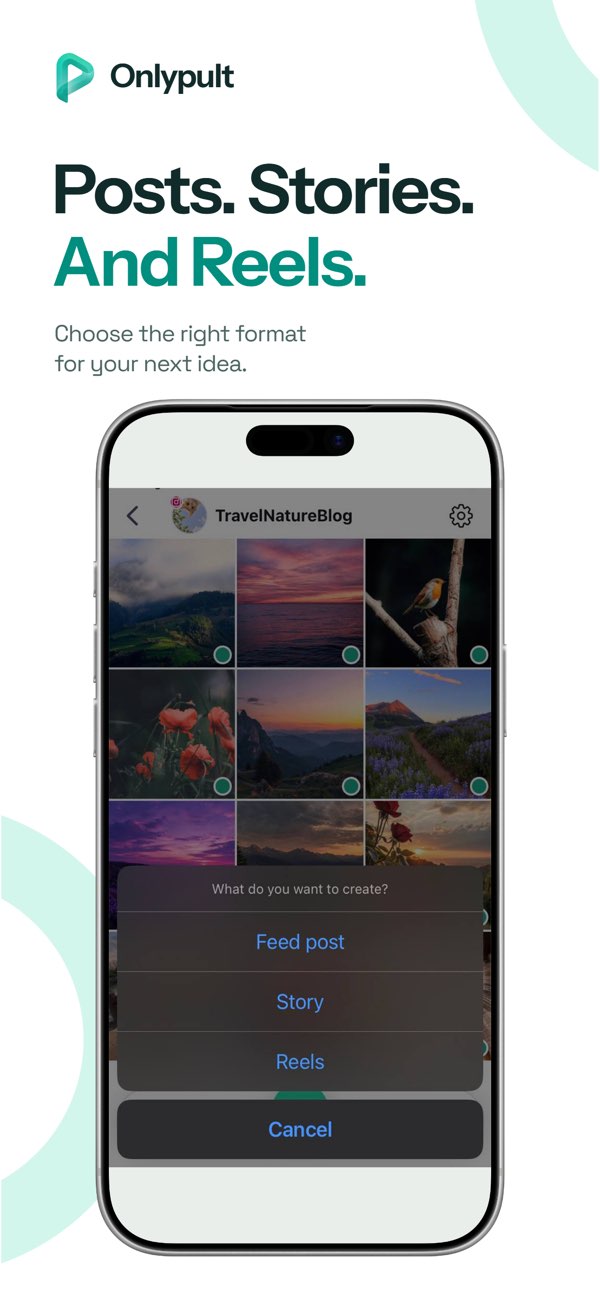
Tap + and choose Feed post, Story or Reels to open the editor for that format.
Calendar, list and grid views
Use the calendar to check the schedule for a date. Posts are also available in list and grid views.
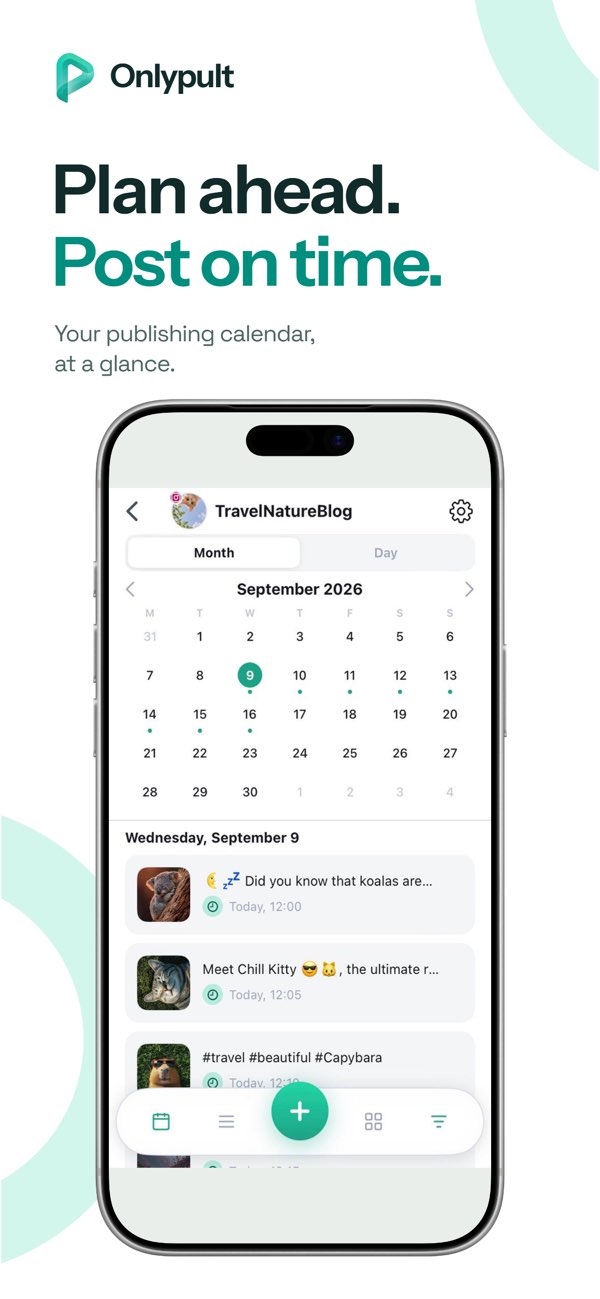
Open the calendar in the bottom navigation. Switch between Month and Day, then tap a date to see its posts.
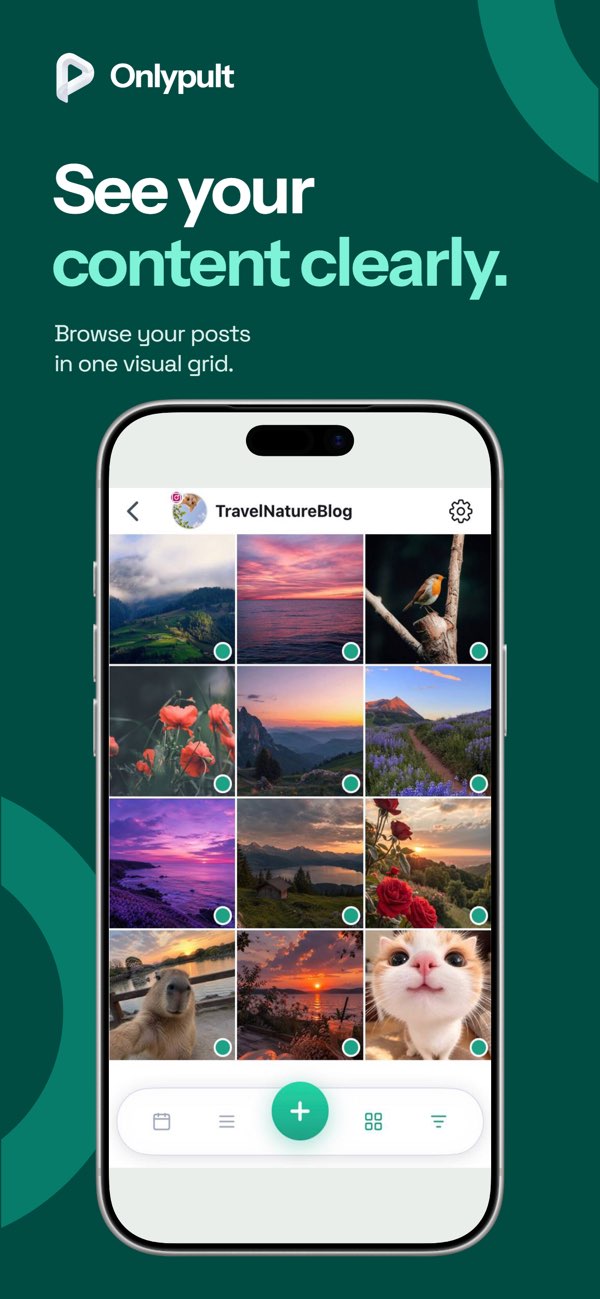
Tap the grid icon in the bottom navigation to find a post by its image. Tap a card to open the post.
Approvals and notifications
Team approvals and notifications have been updated in the app. Before approving a post, check its text, media, account and publishing time.
Get the update
Onlypult 3.0.7 is available in the App Store.
New users can try all features free for seven days. A paid plan is required after the trial.